Direct warehouse connection
Use this guide when DashQ has provisioned direct BigQuery access for your team. This path supports SQL clients, notebooks, internal BI, and locally operated MCP tools. It is separate from application embeds, JSON APIs, and the hosted DashQ Data MCP.
Choose the right path
| Need | Recommended integration |
|---|---|
| Embed a complete DashQ experience | Embedded experiences |
| Render DashQ data in your product | Data APIs |
| Connect an approved AI client without local Google credentials | DashQ Data MCP |
| Run approved models from an external client | Dashnet inference |
| Run SQL, notebooks, BI, or your own BigQuery MCP process | Direct warehouse connection |
Provisioning package
DashQ provides these values through the approved onboarding channel:
| Value | Placeholder used below |
|---|---|
| Project containing the governed views | YOUR_DASHQ_DATA_PROJECT_ID |
| Project billed for queries | YOUR_BILLING_PROJECT_ID |
| Approved dataset and views | YOUR_DATASET_ID, YOUR_VIEW_ID |
| BigQuery processing location | YOUR_LOCATION |
| Authentication method | Client-owned service account, user ADC, impersonation, workload identity, or an approved key file |
| Service-account identity, when used | YOUR_SERVICE_ACCOUNT_EMAIL |
| Approved public egress networks | YOUR_ALLOWED_IP_CIDRS |
Do not infer these values from source code, another customer, or another environment.
Current upstream references:
- Google Cloud authentication and ADC
- Service-account impersonation
- BigQuery with MCP Toolbox
- DBeaver BigQuery driver
Required access
The authenticated principal needs permission to create BigQuery jobs in the billing project and read only the datasets/views included in the provisioning package. DashQ normally maps this to the minimum equivalent of BigQuery Job User plus Data Viewer at the narrowest applicable scope. Direct external requests must also originate from a public egress network approved for that client.
The BigQuery API must be enabled for the billing project. Production and non-production identities, projects, credentials, and query results must remain separate.
Client-owned service-account activation
This is the preferred handoff when the client already operates a dedicated Google service account for SQL, BI, notebooks, or local MCP workloads.
- The client creates a dedicated service account in a client-controlled Google Cloud project.
- The client sends only the service-account email and approved public egress CIDRs—for example,
dashq-analytics-reader@YOUR_CLIENT_PROJECT_ID.iam.gserviceaccount.comandYOUR_ALLOWED_IP_CIDRS—through the approved DashQ onboarding channel. Do not send a JSON key, private key, access token, or credential file. - The client confirms the DashQ account/property scope and the production or non-production environment to activate.
- DashQ grants that principal read access to the approved governed datasets or views, authorizes the supplied source networks, and confirms when both controls are active.
- The client enables the BigQuery API and grants the service account permission to create query jobs in
YOUR_BILLING_PROJECT_ID. - The client authenticates as that identity using workload identity, impersonation, or an approved client-managed key, then runs the validation steps below.
| Responsibility | Owner |
|---|---|
| Create and govern the service account | Client |
| Provide the service-account email, requested business scope, and public egress CIDRs | Client |
| Maintain stable egress and notify DashQ before an approved CIDR changes | Client |
| Activate the approved DashQ dataset/view and source-network access | DashQ |
| Manage credentials, key rotation, workload identity, and query billing | Client |
| Change or revoke the DashQ data grant when requested | DashQ |
Create the principal and its query-job permission from Google Cloud Shell. If an approved dedicated service account already exists, skip the create command and set SERVICE_ACCOUNT_EMAIL to its email. The service account does not need a project-level data role in the client project:
gcloud services enable iam.googleapis.com \
  --project=YOUR_CLIENT_PROJECT_ID

gcloud services enable bigquery.googleapis.com \
  --project=YOUR_BILLING_PROJECT_ID

gcloud iam service-accounts create dashq-reader \
  --project=YOUR_CLIENT_PROJECT_ID \
  --display-name="DashQ governed warehouse reader"

SERVICE_ACCOUNT_EMAIL="dashq-reader@YOUR_CLIENT_PROJECT_ID.iam.gserviceaccount.com"

gcloud projects add-iam-policy-binding YOUR_BILLING_PROJECT_ID \
  --member="serviceAccount:${SERVICE_ACCOUNT_EMAIL}" \
  --role="roles/bigquery.jobUser"
Send DashQ SERVICE_ACCOUNT_EMAIL, YOUR_ALLOWED_IP_CIDRS, the requested account/property scope, and the target environment through the approved onboarding channel. DashQ applies the read grant and network authorization to its governed data scope; the client does not grant DashQ access to the client project.
Access is not active until DashQ confirms both the identity grant and network authorization. If the client replaces the service account or changes its egress network, activate the new value and validate it before the former value is revoked through the same approved channel.
Network authorization
Direct warehouse access has two independent controls:
- the authenticated principal must exactly match the approved identity; and
- the request's public source IP must be inside that client's approved CIDR set.
BigQuery IAM alone is not sufficient. DashQ creates a client-specific access level and ingress rule that pair the approved identity with the approved source network. A valid credential used from an unapproved network is denied before protected DashQ data can be read.
Provide the public egress CIDR observed after any VPN, proxy, firewall, or NAT—not a laptop's private address such as 10.x.x.x, 172.16.x.x, or 192.168.x.x. Ask your network administrator for the authoritative egress range.
| Client path | Network value to approve |
|---|---|
| DBeaver, local SQL, or notebook | Stable office, VPN, or proxy public egress |
| Cloud-hosted workload | Static NAT or egress-gateway public CIDR |
| Self-operated BigQuery MCP | Public egress of the environment running the MCP process |
| Hosted BI or SaaS connector | Dedicated stable egress CIDRs, when the provider supports them |
| DashQ-managed Data MCP | Use the managed connector; the user's workstation IP is not part of the direct warehouse path |
Use CIDR notation. A single IPv4 address is written as /32. Do not request broad residential, mobile, or unrelated corporate ranges. A hosted connector without dedicated stable egress may be incompatible with direct warehouse access; confirm the supported path during provisioning.
Treat an IP change as an access change. Send the new public CIDR through the approved onboarding channel, validate from the new path, then ask DashQ to remove the old range. DashQ does not publish perimeter identifiers or another client's network ranges.
Authentication
Choose the method DashQ provisioned. Do not create a service-account key unless that method was explicitly approved.
Option A: user Application Default Credentials
Use this for an individually authorized analyst or developer when user-based access is provisioned.
gcloud auth application-default login
gcloud auth application-default set-quota-project YOUR_BILLING_PROJECT_ID
This creates local Application Default Credentials (ADC) for tools and client libraries. Your regular gcloud auth login session and ADC are distinct.
Option B: service-account impersonation
Use impersonation when the provisioning package names a service account and its owner grants a specific operator permission to impersonate it. This uses short-lived credentials and avoids a persistent private key. For a client-owned principal, a client administrator can grant a named operator the Service Account Token Creator role on that service account:
gcloud iam service-accounts add-iam-policy-binding YOUR_SERVICE_ACCOUNT_EMAIL \
  --member="user:YOUR_OPERATOR_EMAIL" \
  --role="roles/iam.serviceAccountTokenCreator"
Do not grant this role to a domain-wide or public principal.
gcloud auth application-default login \
  --impersonate-service-account=YOUR_SERVICE_ACCOUNT_EMAIL
For a single gcloud or bq command, you can instead add:
--impersonate-service-account=YOUR_SERVICE_ACCOUNT_EMAIL
Option C: approved client-managed service-account key
Use a JSON key only when the provisioning package and the client's security policy explicitly allow it and impersonation or federation is unavailable. The client creates and retains the key; DashQ needs only the service-account email and never needs the private key. Save the file in the client's protected credential store, restrict file permissions, and never commit, paste, upload, or include it in an AI prompt.
PowerShell for the current process:
$env:GOOGLE_APPLICATION_CREDENTIALS="C:\secure\dashq\warehouse-reader.json"
Bash for the current process:
export GOOGLE_APPLICATION_CREDENTIALS="/secure/dashq/warehouse-reader.json"
Unset the variable after the session and follow the rotation/revocation instructions in your provisioning package.
Validate the connection
First confirm credentials and query-job access without reading business data:
gcloud auth application-default print-access-token

bq query \
  --project_id=YOUR_BILLING_PROJECT_ID \
  --location=YOUR_LOCATION \
  --use_legacy_sql=false \
  "SELECT 1 AS ok"
SELECT 1 proves that the client can authenticate and create a query job in its billing project. It does not prove that the request's source IP is authorized to reach DashQ's protected project.
Then validate one provisioned view with a bounded query. This is the end-to-end check for identity, source network, dataset access, and business scope:
SELECT
  report_date,
  account_name,
  building_name,
  leads_claimed,
  tours_booked,
  applications_submitted,
  leases_signed
FROM `YOUR_DASHQ_DATA_PROJECT_ID.gold_dashq.rpt_leasing_funnel_daily`
WHERE report_date >= DATE_SUB(CURRENT_DATE(), INTERVAL 30 DAY)
ORDER BY report_date DESC
LIMIT 50;
If your package uses another dataset or view, replace the fully qualified name. Use the Data Dictionary to confirm grain, fields, formulas, join keys, nullability, and lineage before building production queries.
Python and notebooks
Install the official BigQuery client library in your managed environment:
python -m pip install google-cloud-bigquery
ADC automatically supplies the identity configured above:
from google.cloud import bigquery

client = bigquery.Client(project="YOUR_BILLING_PROJECT_ID", location="YOUR_LOCATION")
query = """
  SELECT report_date, building_name, leads_claimed, leases_signed
  FROM `YOUR_DASHQ_DATA_PROJECT_ID.gold_dashq.rpt_leasing_funnel_daily`
  WHERE report_date BETWEEN @start_date AND @end_date
  ORDER BY report_date DESC
  LIMIT 500
"""
job_config = bigquery.QueryJobConfig(
    query_parameters=[
        bigquery.ScalarQueryParameter("start_date", "DATE", "2026-01-01"),
        bigquery.ScalarQueryParameter("end_date", "DATE", "2026-03-31"),
    ],
    maximum_bytes_billed=10_000_000_000,
)
rows = client.query(query, job_config=job_config).result()
Replace the example dates and byte limit with values appropriate to your approved workflow. Keep query parameters separate from SQL text when values come from users.
DBeaver
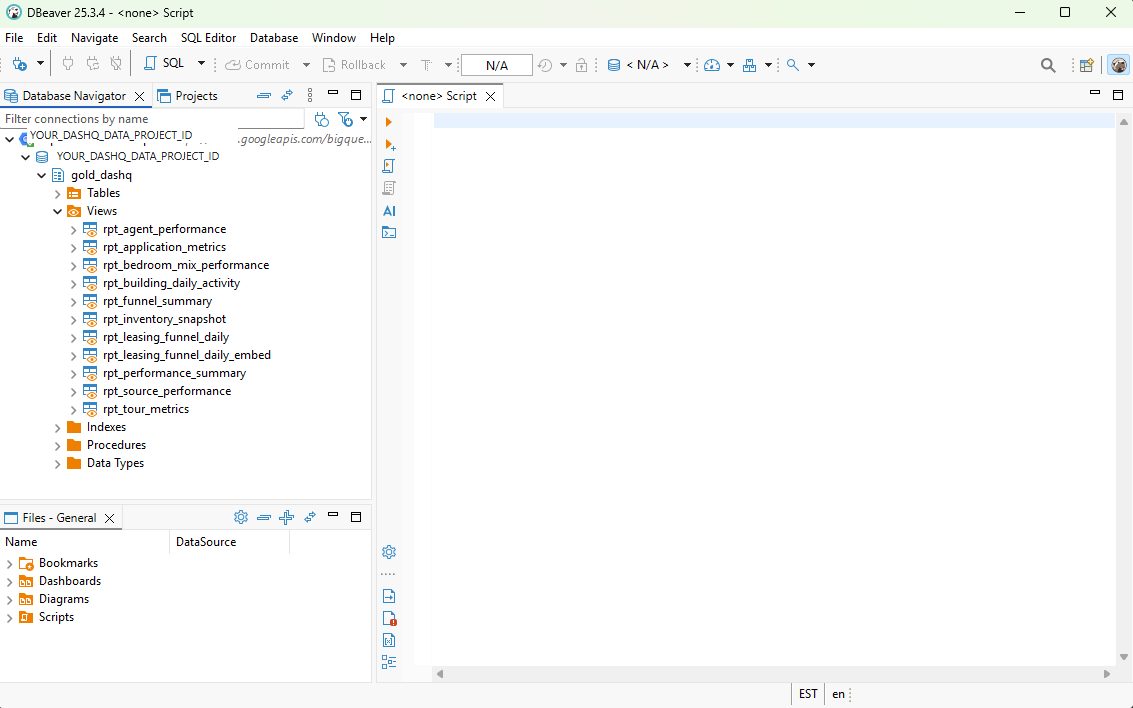
Example DBeaver navigator after warehouse access is activated. The project, dataset, and visible views depend on the client's provisioning package.
- Select Database > New Database Connection > BigQuery. Use the standard production driver.
- Enter
YOUR_BILLING_PROJECT_IDas the query project. Add the DashQ data project if DBeaver provides an additional-projects field. - Connect from the approved office, VPN, proxy, or static cloud egress path listed in
YOUR_ALLOWED_IP_CIDRS. - Choose the authentication method matching your provisioning package: default credentials, browser/SSO, impersonated ADC, or an approved key file.
- Select Standard SQL and set
YOUR_LOCATIONwhen the connection uses sessions or requires an explicit region. - Test the connection, then query one approved view.
SELECT 1 AS okalone does not validate DashQ network or dataset access.
DBeaver metadata discovery can create billable BigQuery requests. Limit visible projects and datasets and disable unnecessary metadata queries when appropriate.
Looker Studio and BI tools
Use a recurring BI connection only when the reporting owner, viewer credential model, and stable public egress path are defined. A hosted BI service must supply dedicated egress CIDRs that DashQ can approve; shared or changing provider ranges may not be supported.
- Choose viewer credentials when each viewer has individual BigQuery access, or a managed reusable data source when an analytics owner maintains the connection.
- Connect the approved Google identity to BigQuery.
- Select the project, dataset, and view from the private provisioning package.
- Confirm
report_dateis a date dimension; account/building names are dimensions; additive volumes useSUM. - Add account, building, and date controls. Keep the active scope visible in the report.
- Start with volume scorecards and a time series before adding calculated rates.
For the leasing funnel view, useful starter measures are leads_claimed, tours_booked, applications_submitted, and leases_signed. Confirm every rate or stage definition in the dictionary rather than rebuilding business logic in the BI layer.
Local BigQuery MCP Toolbox
This section is for teams explicitly approved to operate their own local BigQuery MCP process. For a managed remote connector, use DashQ Data MCP instead.
Google's MCP Toolbox for Databases supports BigQuery through ADC. Install a current release for your operating system; Google requires version v0.7.0 or later.
Windows example:
$toolboxVersion = "YOUR_APPROVED_TOOLBOX_VERSION"
curl.exe -L -o toolbox.exe "https://storage.googleapis.com/mcp-toolbox-for-databases/$toolboxVersion/windows/amd64/toolbox"
.\toolbox.exe --version
Claude Code or Claude Desktop configuration:
{
  "mcpServers": {
    "bigquery": {
      "command": "C:\\path\\to\\toolbox.exe",
      "args": ["--prebuilt", "bigquery", "--stdio"],
      "env": {
        "BIGQUERY_PROJECT": "YOUR_BILLING_PROJECT_ID"
      }
    }
  }
}
VS Code uses the same server definition under a top-level servers object. Restart the client after saving its MCP configuration. The process inherits ADC; do not embed a credential value or key JSON in the MCP file.
The upstream BigQuery toolbox can expose write-capable SQL. Direct DashQ access is provisioned as read-only, but clients must still instruct agents to use bounded SELECT statements, explicit columns, date filters, and limits. Do not rely on the prompt as the authorization boundary.
Query standards
- Prefer governed
gold_dashqreporting views over raw or staging datasets. - Check the view grain and primary/join keys before combining models.
- Select only required fields; avoid
SELECT *. - Apply explicit account, property, and date filters.
- Use query parameters for user-controlled values.
- Use
LIMIT, maximum bytes billed, and timeouts for exploration. - Do not write, export, share, or persist rows outside the approved destination and retention policy.
- Record the view names, filters, and definition assumptions with every material result.
Troubleshooting
| Symptom | Check |
|---|---|
| Client-owned service account has no data | Confirm DashQ activated the exact service-account email for the intended account/property scope and environment. |
| ADC not found | Run the provisioned ADC flow in the same OS/user context as the client. |
| Impersonation denied | Confirm your user has permission to impersonate the supplied service account. |
403 creating a query job | Confirm job permission in YOUR_BILLING_PROJECT_ID. |
403, perimeter, or VPC Service Controls error on a governed view | Confirm the exact identity and that the request is leaving through an approved public CIDR. |
| Access works on VPN but fails off VPN | The VPN likely provides the approved egress. Use the approved path or submit a controlled CIDR change. |
| Dataset or view not visible | Confirm the exact data project, dataset, and identity from the provisioning package. |
| Location mismatch | Set YOUR_LOCATION consistently for the connection and query job. |
| DBeaver connects but shows no views | Add the DashQ data project and restrict the navigator to the approved dataset. |
| MCP starts but tools fail | Verify ADC in the MCP process environment and set BIGQUERY_PROJECT to the billing project. |
| Query is expensive or blocked | Select fewer columns, narrow dates, add filters/limits, and set a bytes-billed cap. |
Never send credentials in a support request. Provide the non-sensitive identity name, expected public egress CIDR, project placeholders, timestamp, client/tool version, query job ID, and error code through the approved DashQ support channel.